¶ Open OnDemand Usage
Open OnDemand (OOD) is a web-based portal that allows users to access and utilize the High-Performance Computing (HPC) system via a web browser, eliminating the need for direct terminal commands. Access is available through https://erawan.cmu.ac.th
¶ 1. System Login
-
1.1.Access the website via https://erawan.cmu.ac.th
-
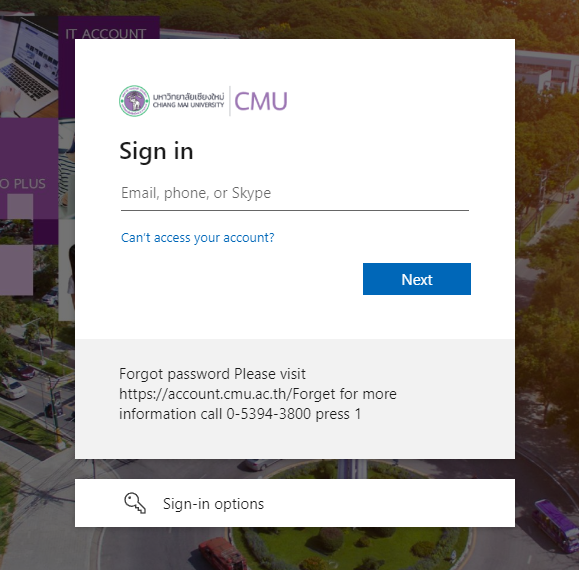
1.2. Log in using your CMU Account.
- 1.3. Upon successful login, the Dashboard will be displayed, which is the main page containing various menus and essential information.
The Dashboard comprises 3 Applications
1.Erawan SSH: A service that allows users to connect to the Erawan HPC system via the SSH protocol through a web browser. It directs the user to the/homefolder to manage files or execute commands directly.
2.Erawan Desktop : A service that provides users with access to the graphical interface of the Erawan HPC system via a web browser, utilizing VNC technology. This is suitable for tasks requiring a GUI interface, such as running data analysis, engineering software, or visualization tools.
3.Jupyter Notebook : A service that enables users to utilize Jupyter Notebook on the Erawan HPC system via a web browser for writing code, analyzing data, and interactive display of results. It is ideal for Data Science, Machine Learning, and computational research tasks.

Open OnDemand Usage Menus
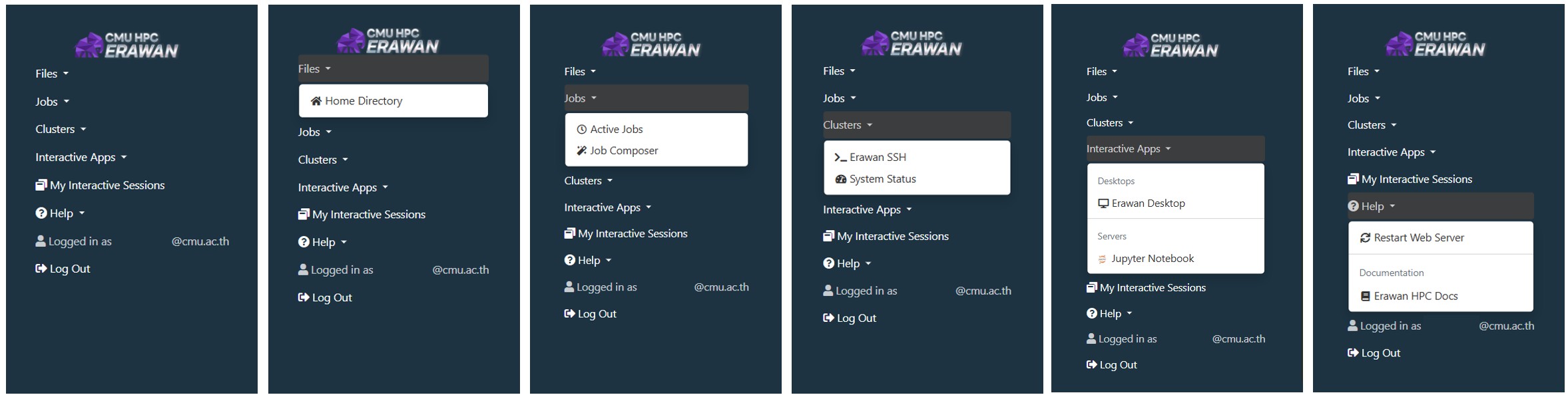
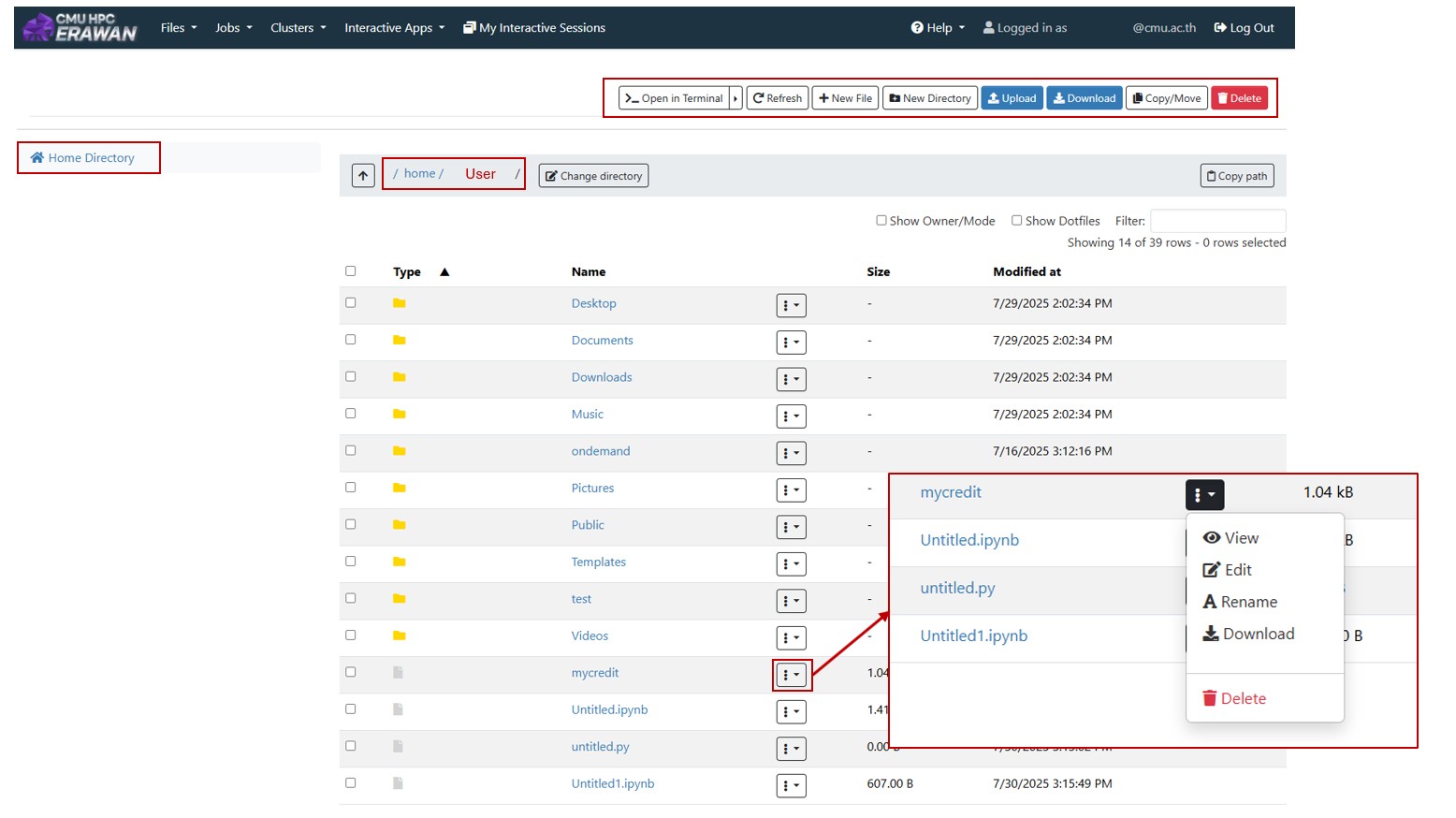
1. File : Displays the user's Home Directory, which is the storage space for various files and data. Users can conveniently create, edit, delete, copy, move, upload, or download files and folders. Furthermore, a Terminal window can be opened by clicking the >_ Open in Terminal button to execute shell commands directly.
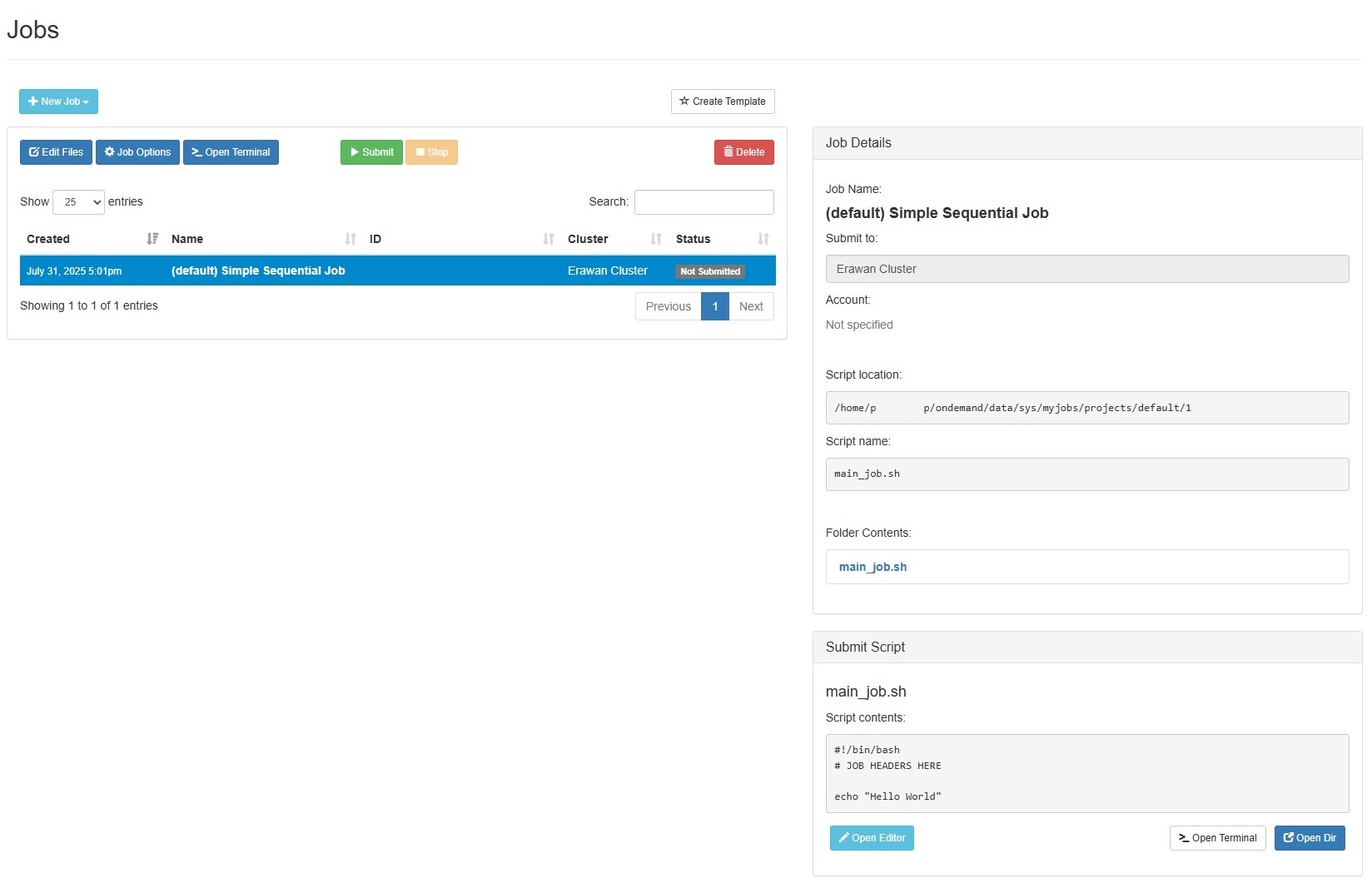
2. Job : Consists of
- Active Jobs: Displays a list of jobs submitted by the user to the cluster, along with status information such as Running, Pending, etc.

- Job Composer: A tool that assists users in creating, editing, and submitting jobs through a graphical interface. It is suitable for beginners or those unfamiliar with using terminal commands, allowing management of script files and configuration of required resources, such as the number of cores or processing time.
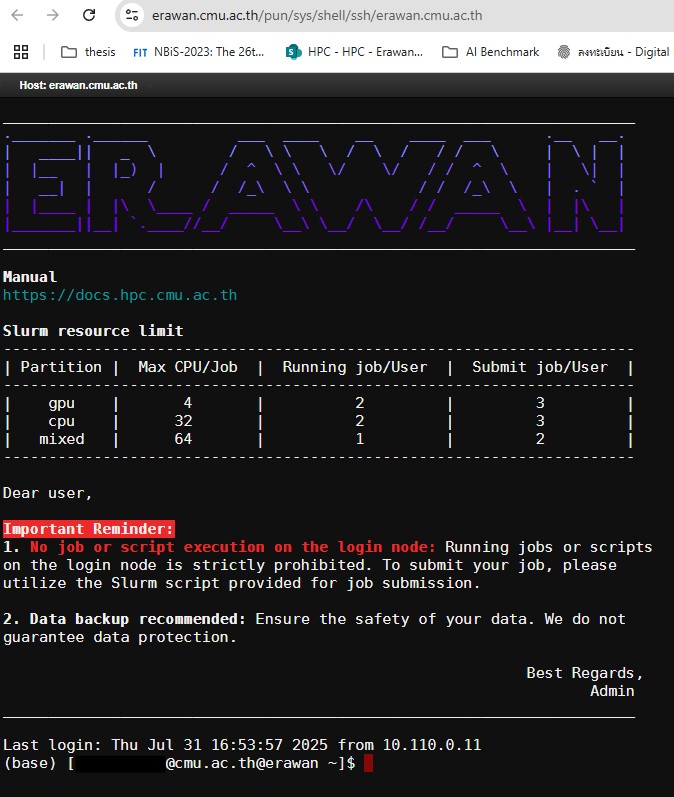
3. Cluster : Consists of
- Erawan SSH : The service to connect to the Erawan HPC system via SSH through a web browser. Users can run commands, manage files, and perform various operations as if using a physical terminal.
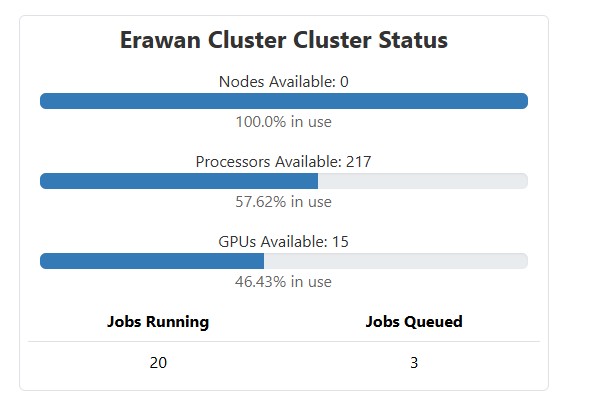
- System Status :Displays the status of the cluster system, such as the number of active nodes, job queues, resource usage, and a system summary, enabling users to plan their resource utilization efficiently.
4. Interactive Apps : Consists of
- Erawan Desktop : A service that provides users with access to the graphical interface of the Erawan HPC system via a web browser, utilizing VNC technology. This is suitable for tasks requiring a GUI interface, such as running data analysis, engineering software, or visualization tools.
- Jupyter Notebook : A service that enables users to utilize Jupyter Notebook on the Erawan HPC system via a web browser for writing code, analyzing data, and interactive display of results. It is ideal for Data Science, Machine Learning, and computational research tasks.
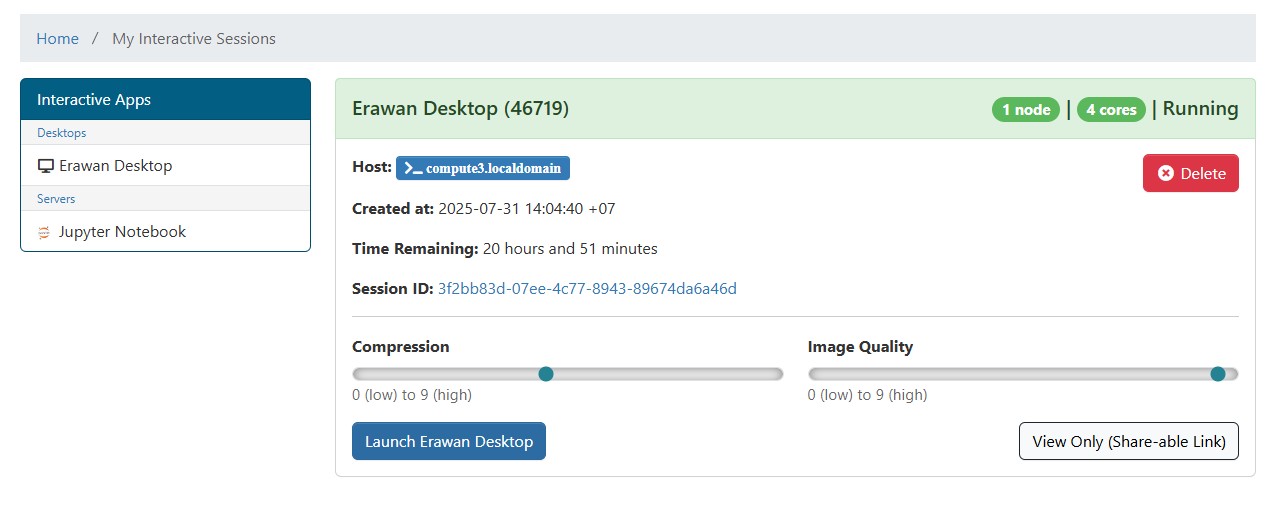
5. My Interactive Session : Displays a list of interactive sessions or other applications that the user has initiated on the HPC system. Users can view the status of each session, access currently running sessions, stop a session, or relaunch it from this page, facilitating efficient and convenient resource management.
¶ 2. Accessing Interactive Applications
Interective Application
¶ 2.1 Accessing Erawan Desktop
-
- From the Dashboard, click on the
Erawan Desktopicon.
- From the Dashboard, click on the
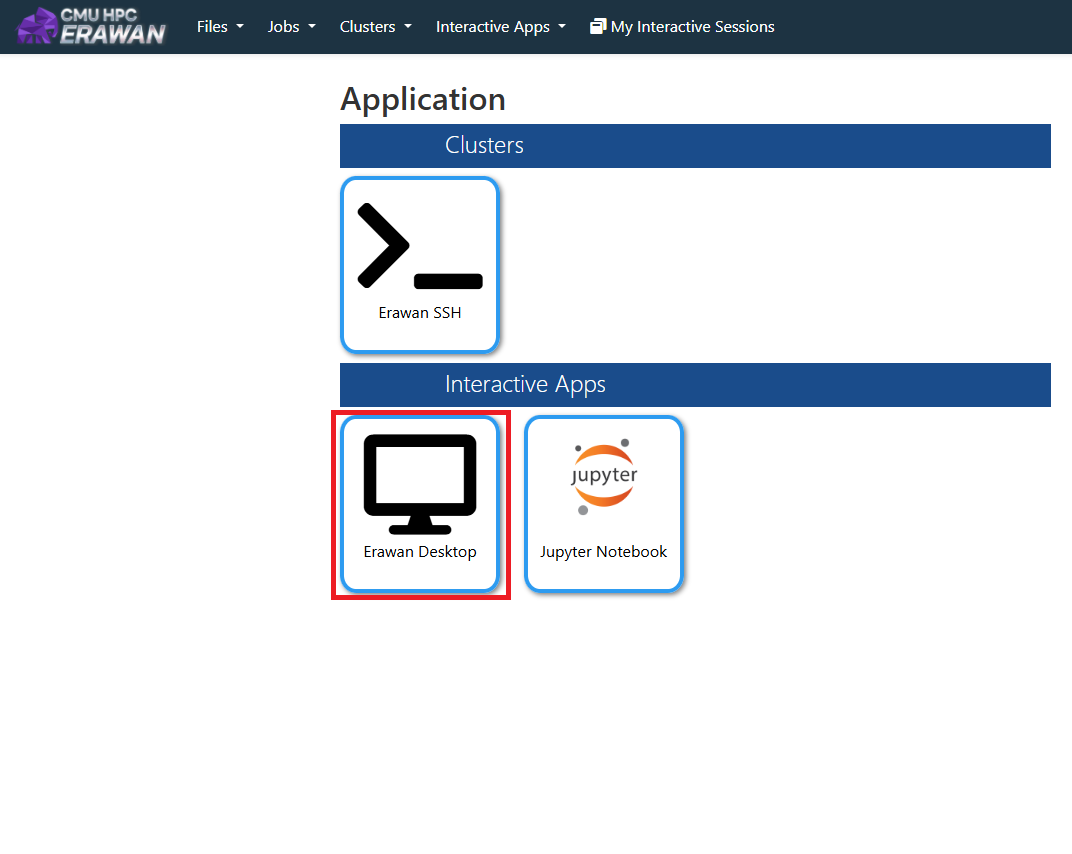
-
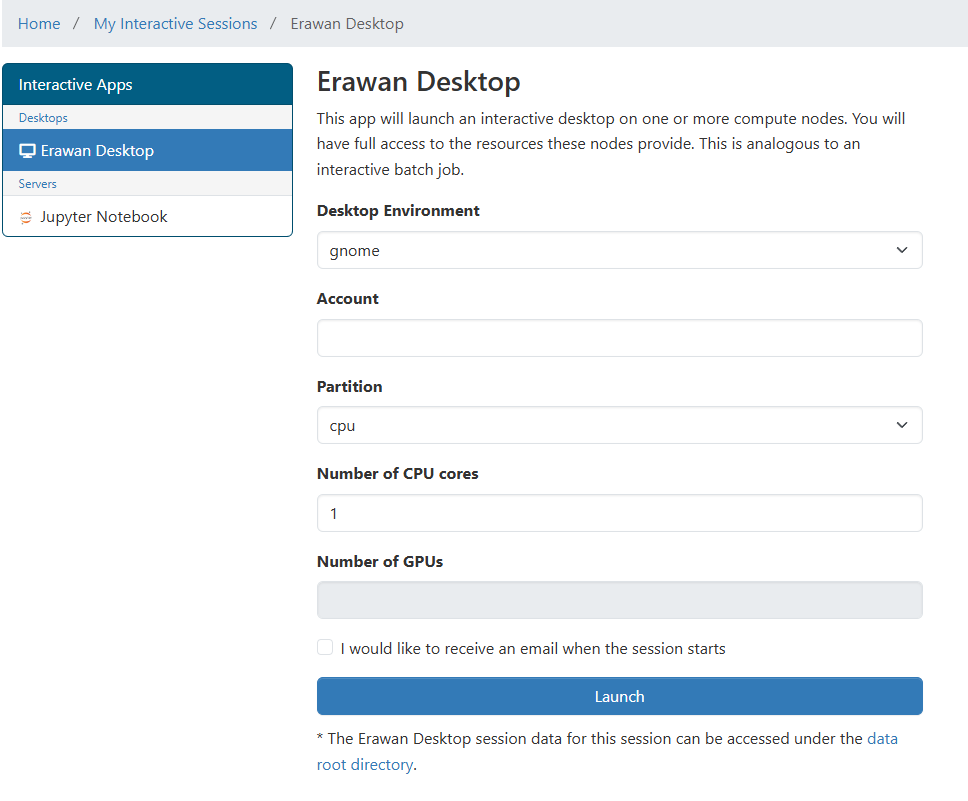
- The system will navigate to the configuration screen for Erawan Desktop, as shown in the image.
-
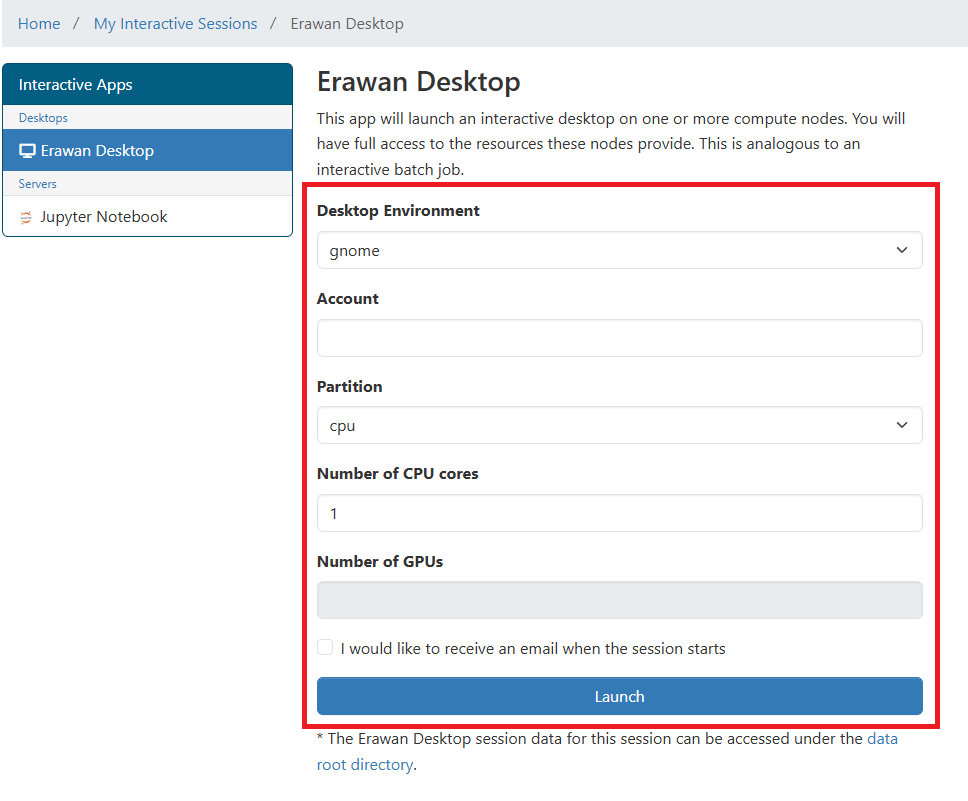
- Configure the required resources for the Desktop Session
Desktop Environment: Select the desired Desktop Environment:
gnome,kde,mate,xfce.
Account: Enter the CMU account username.
Partition: The available partitions are:cpu,gpu,mixed,gpu-h100.
Number of CPU cores: Specify the number of CPU cores required for use.
Number of GPUs: Specify the number of GPUs required for use. This value must be 0 when the Partition selected iscpu.
I would like to receive an email when the session starts: Select this box if an email notification is desired when the Desktop Session begins.
Once the required resources have been configured, click the Launch button.
-
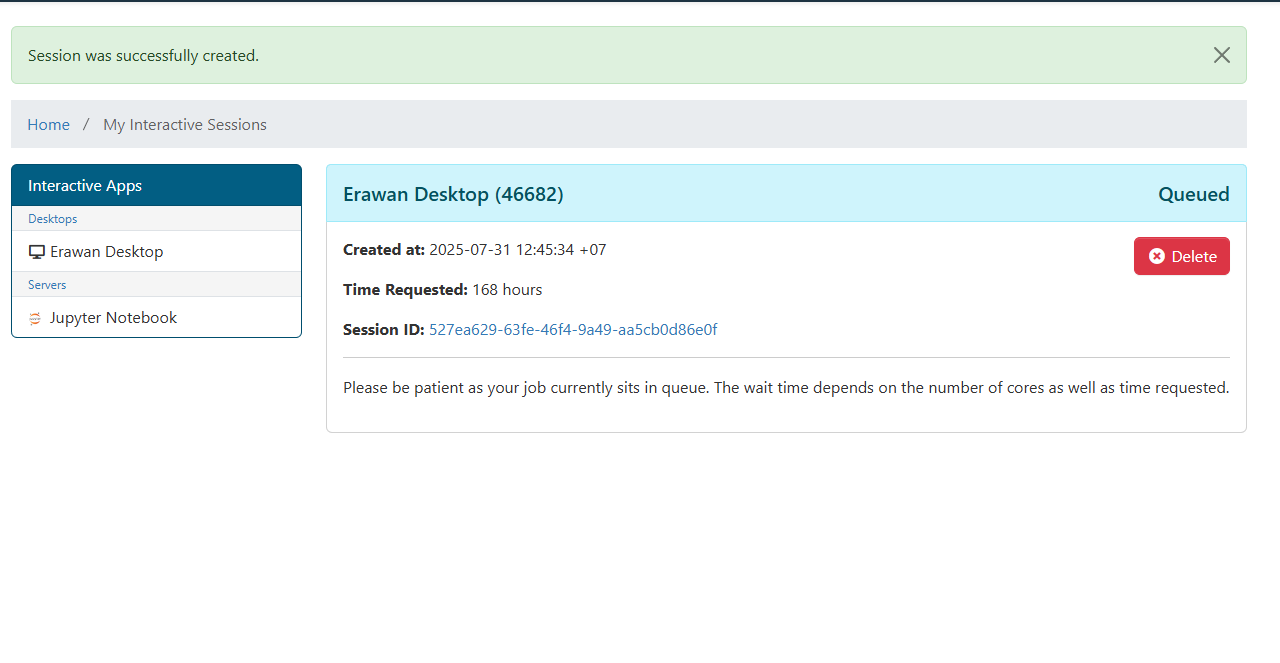
- After clicking
Launch, the system will navigate to theMy Interactive Sessions page, which will display the current status of the requested session. Initially, the session will be in theQueuedstatus, as shown in the image. Please wait for a moment.
- After clicking
-
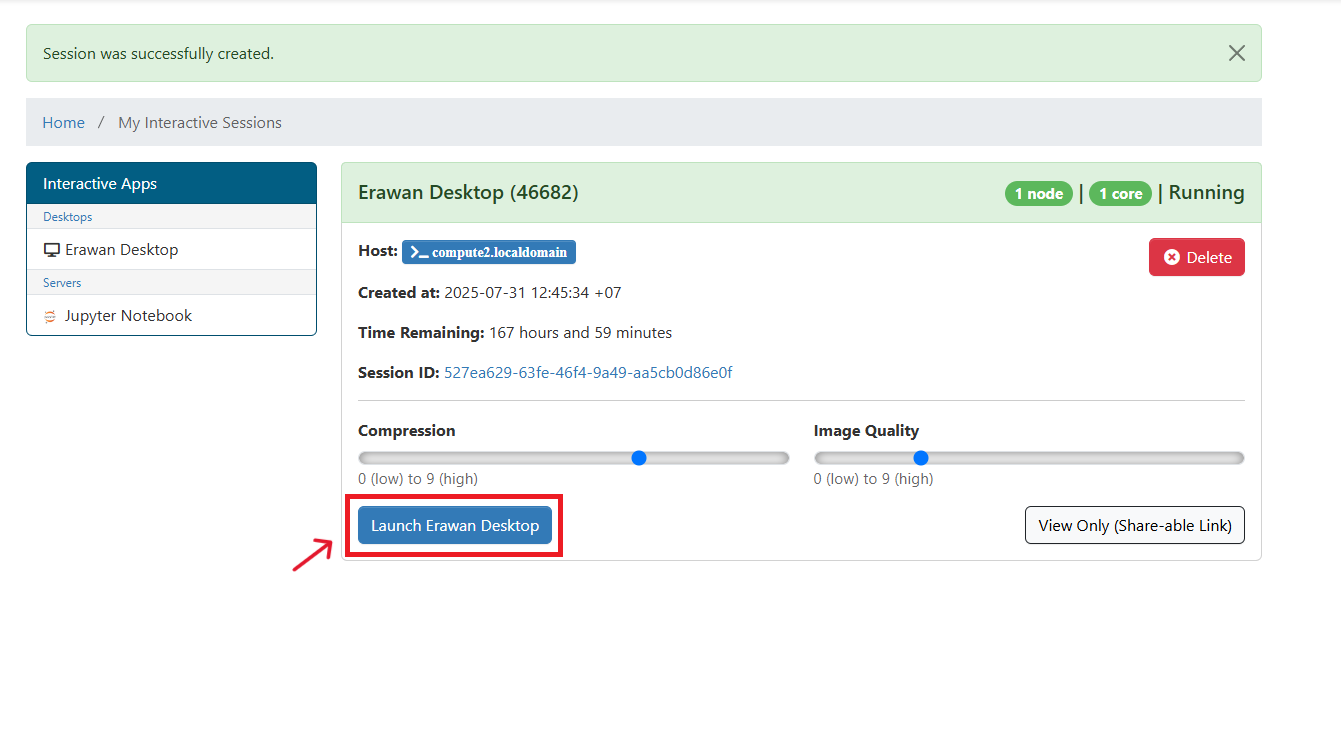
- Subsequently, the status will change to
Running, and the screen will display the host information, including the button to connect to the Desktop. Click theLaunch Erawan Desktopbutton to open the Desktop page in a new browser tab.
- Subsequently, the status will change to
-
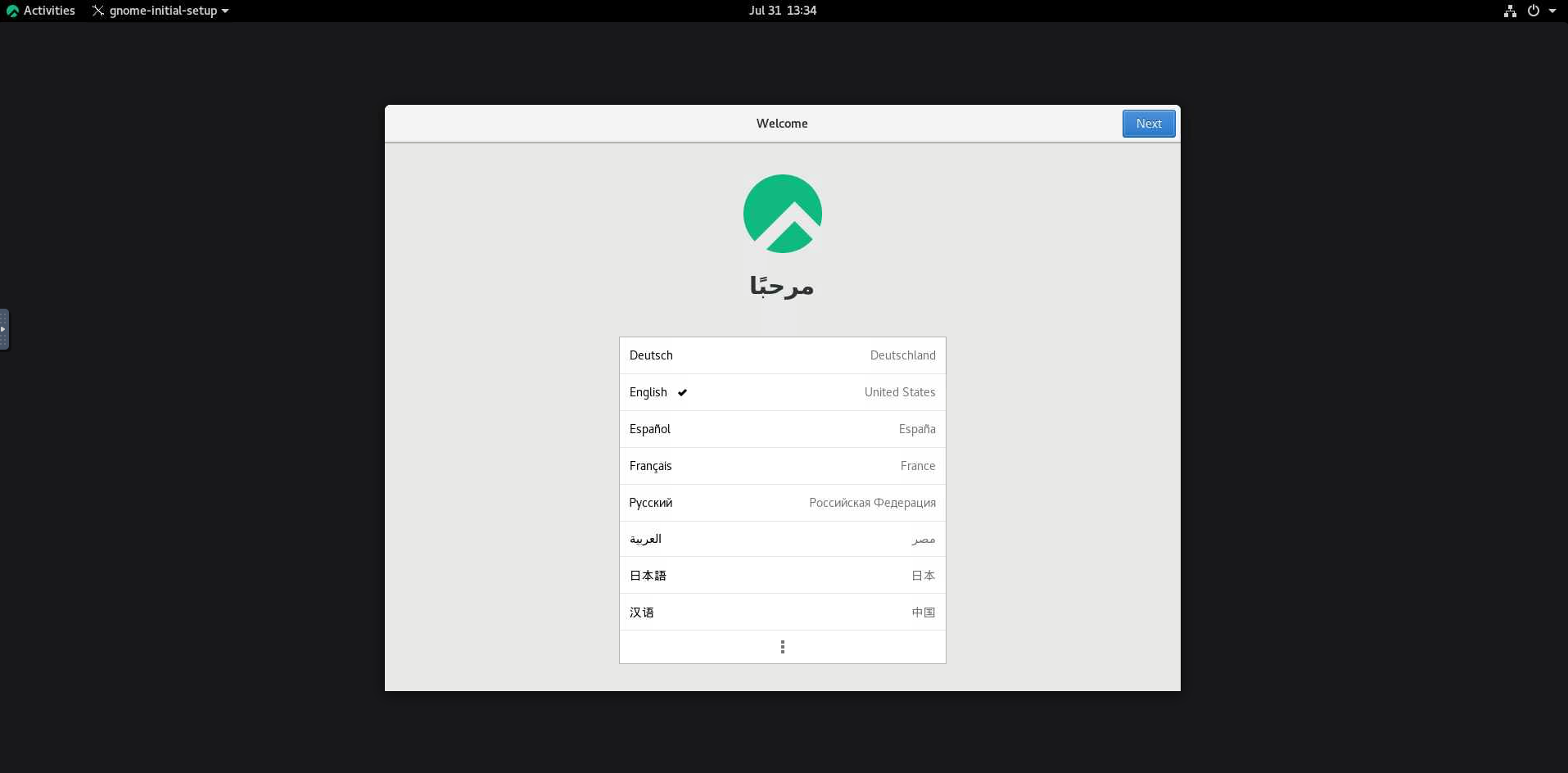
- Upon the first access to Erawan Desktop, a
Welcomescreen for the initial setup of the GNOME Desktop will appear, as shown in the image.
- Upon the first access to Erawan Desktop, a
¶ 2.2 Accessing Jupyter Notebook
-
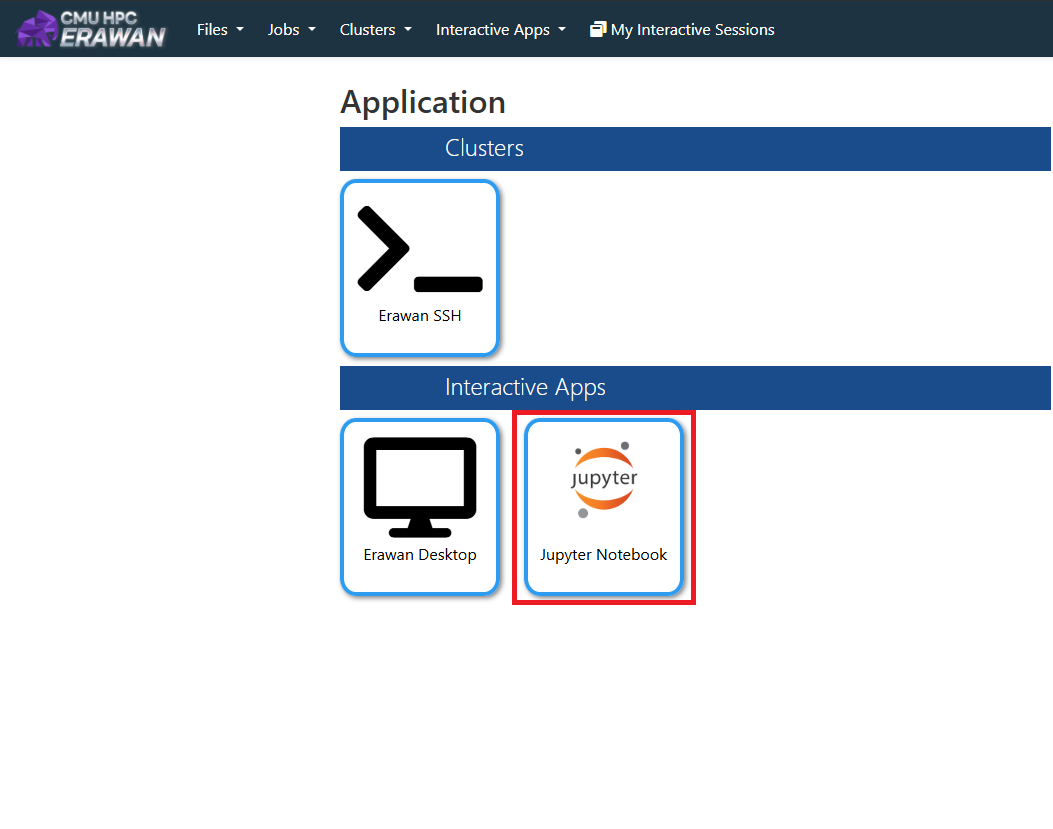
- From the Dashboard, click on the
Jupyter Notebookicon.
- From the Dashboard, click on the
-
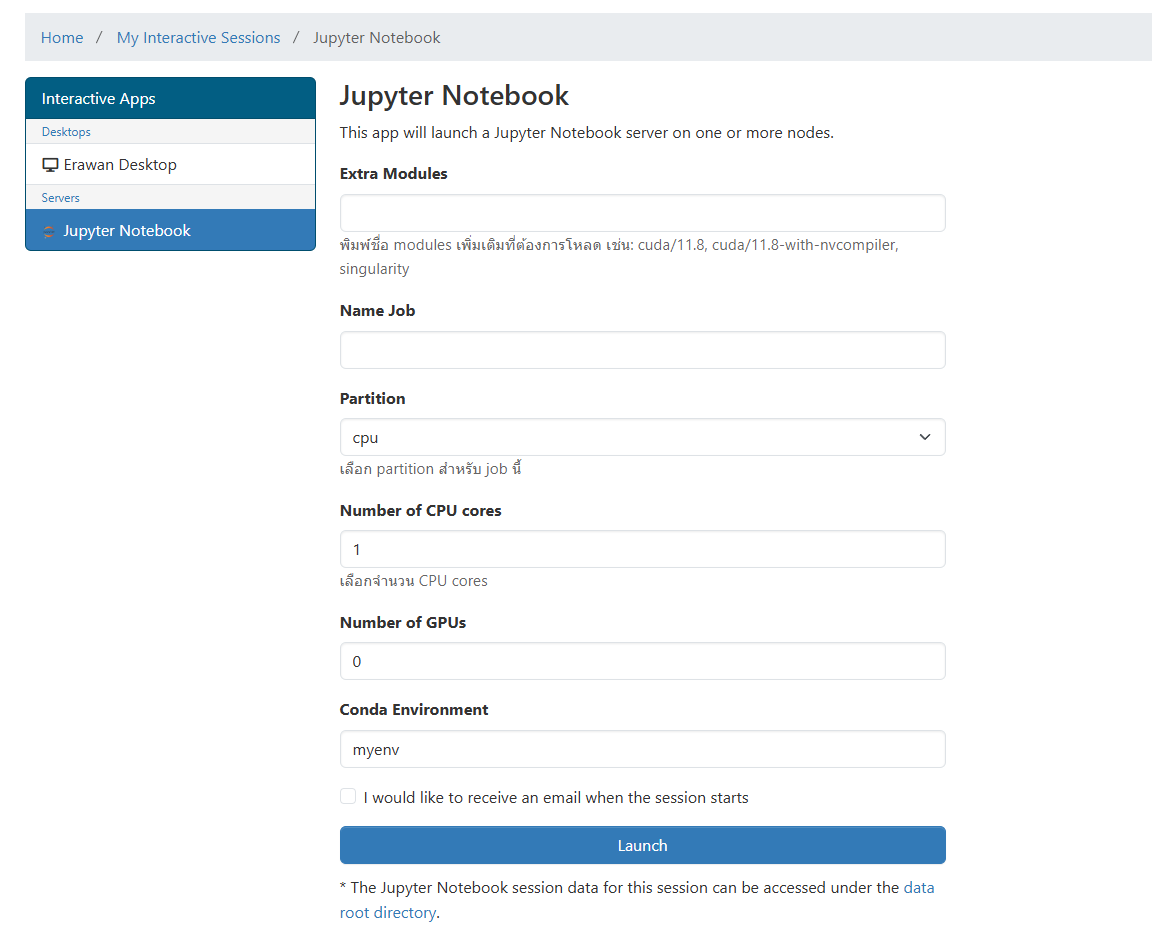
- You will be taken to the configuration screen for Jupyter Notebook, as shown in the image. Then, proceed to configure the settings:
Name Job: Set a name for the Jupyter Notebook Session Job.
Partition: The available partitions are:cpu,gpu,mixed,gpu-h100.
Number of CPU cores: Specify the number of CPU cores required for use.
Number of GPUs: Specify the number of GPUs required for use. This value should be 0 when the Partition selected iscpu.
Conda Environment: Specify the name of the Conda Environment you wish to use, e.g.,myenv(if a specific Conda Environment has been created).
Extra Modules: Specify any additional modules to be loaded.
I would like to receive an email when the session starts: Select this box if an email notification is desired when the Session begins.
Once the required resources have been configured, click the Launch button.
-
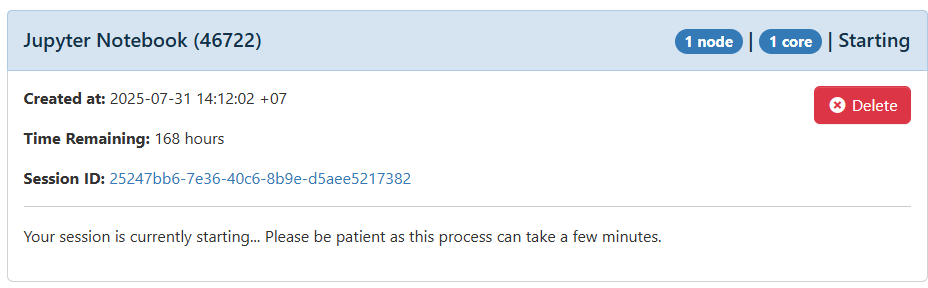
- fter clicking "Launch," you will be navigated to the My Interactive Sessions page, which will display the status of the newly created Session. Initially, the Session may be in the "Starting" (or "Queued") status, as shown in the image. Please wait for a moment.
-
- The status will then automatically change to
Running.
- The status will then automatically change to
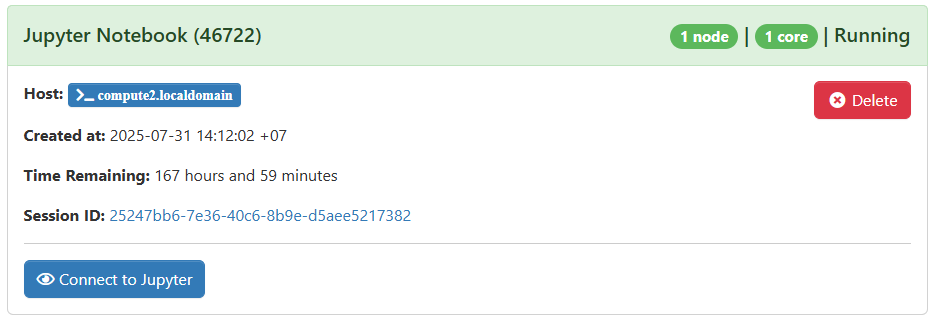
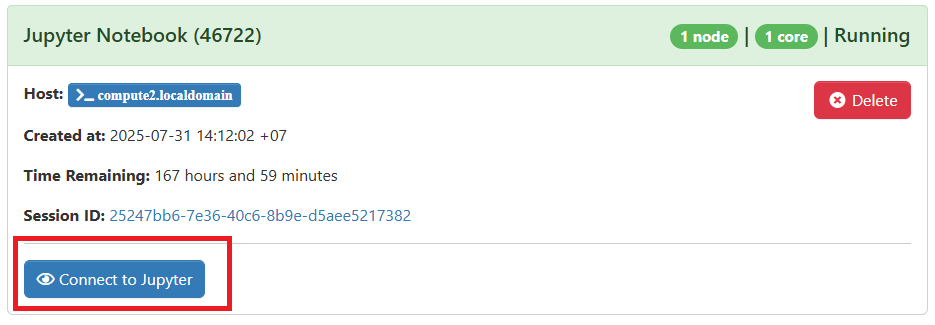
Click Connect to Jupyter to start accessing Jupyter Notebook.
-
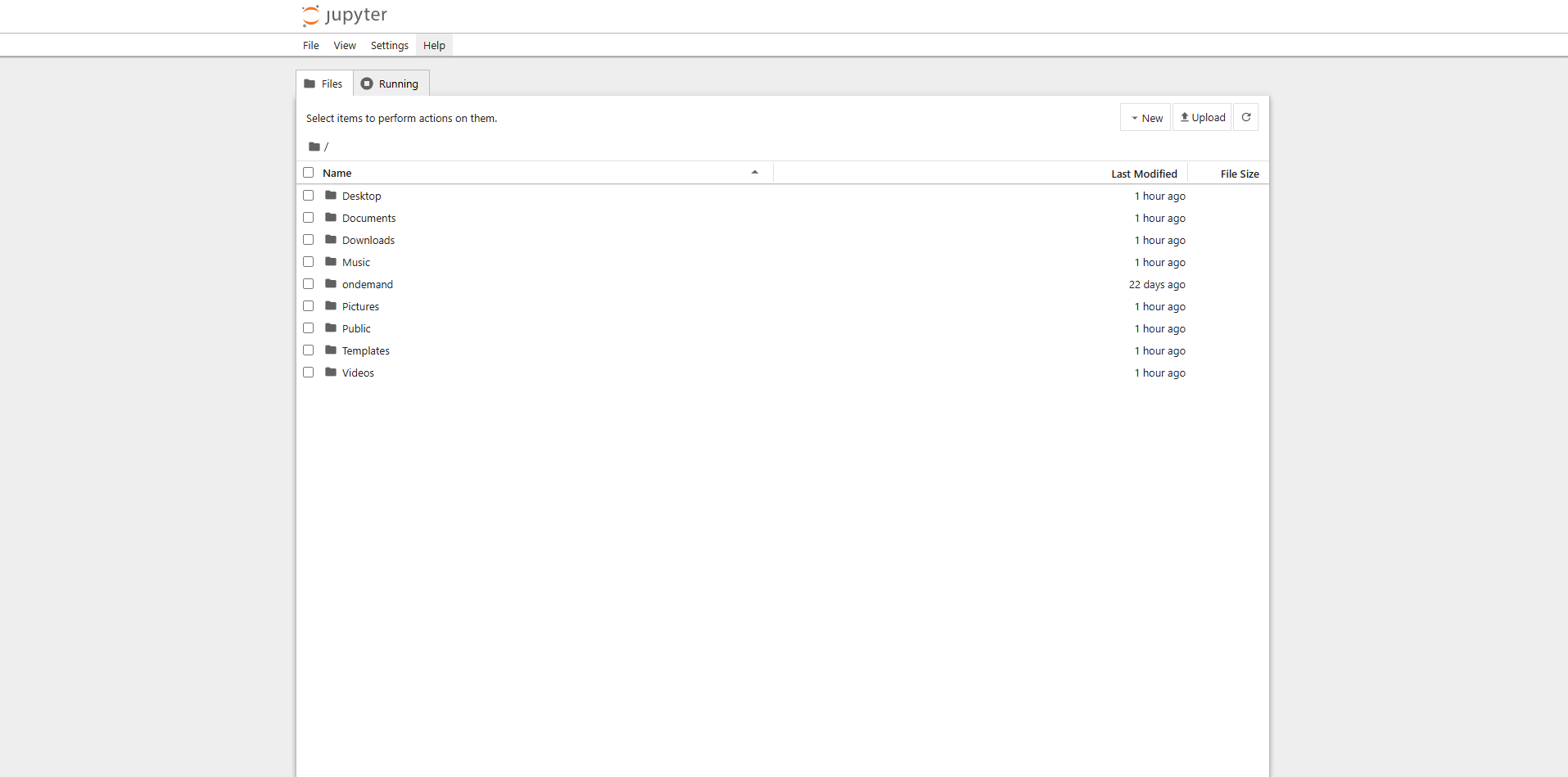
- Upon successful connection, the main page of Jupyter Notebook will be displayed.