¶ External user access
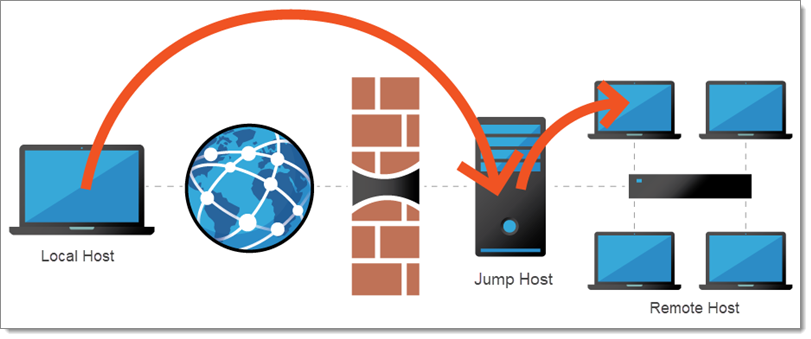
In this case, the connection method utilizes SSH Tunnel Local Port Forwarding directed to a Jump Host.
Once a session has been established from the Jump Host, the user must SSH through their machine's localhost to access the HPC Erawan system.
¶ Create Public key
- Open the command prompt (cmd) in Windows and run:
ssh-keygen
- Press Enter at every prompt until finished.

- Copy the text contents of your
.pub(open it with Notepad)
The file will be located in your.sshfolder, or (C:\Users\<user>\.ssh)

- Send this public key to the administrator via email and wait for a reply with your access details.
¶ How to Access After Receiving Email
- Open your Terminal.
ssh -N -L 22:erawan.cmu.ac.th:22 <user>@tunnel.hpc.cmu.ac.th
Use the username provided in your access email.
- Example: Setting Up the Tunnel

When you run the tunnel setup command and it appears to hang, this means your tunnel is connected leave the window open.
- Open another Terminal window and connect using:
ssh <user>@localhost
Use the same username for the HPC Erawan system.

Fixing port 22 errors on MacOS: If you encounter errors with port 22, specify a different port (e.g., 2222)
- Example of manually specifying a port
You can access the remote port 22 via port 2222 on your own machine, for instance
ssh -N -L 2222:erawan.cmu.ac.th:22 <user>@tunnel.hpc.cmu.ac.th
- Access the system using the configured local port
ssh -p 2222 <user>@localhost
Summary of Workflow After opening the tunnel and keeping the session window open, open a new window and SSH into localhost to access the HPC Erawan system.